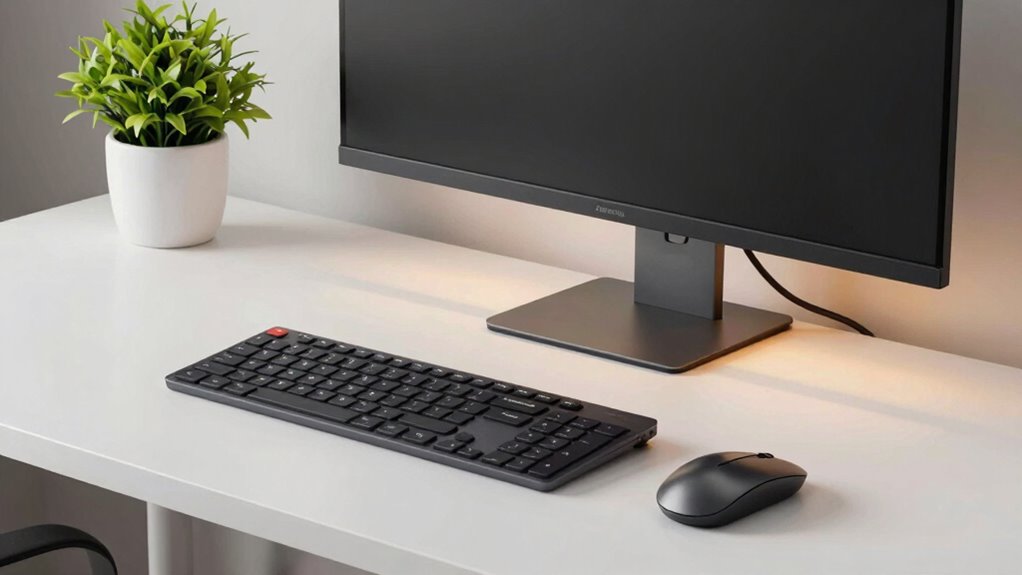
The key to reducing daily friction is properly positioning your monitor at eye level and about an arm’s length away, using ergonomic accessories like adjustable stands or monitor arms for easy adjustments. Aligning multiple screens at the same height and avoiding glare improves comfort and reduces strain. Regularly reevaluate your setup and incorporate small lighting adjustments to increase efficiency. Keep exploring these tips to create a workspace that feels natural and minimizes discomfort throughout the day.
Key Takeaways
- Use adjustable monitor arms to effortlessly customize height and angle, minimizing strain and daily adjustments.
- Position the top of the screen at eye level to promote natural posture and reduce neck tension.
- Align multiple monitors at the same height and angle for seamless workflow and less visual friction.
- Avoid glare by positioning screens away from bright lights or using anti-glare filters, reducing eye strain.
- Regularly reevaluate and adjust monitor placement to adapt to changing needs and maintain comfort.
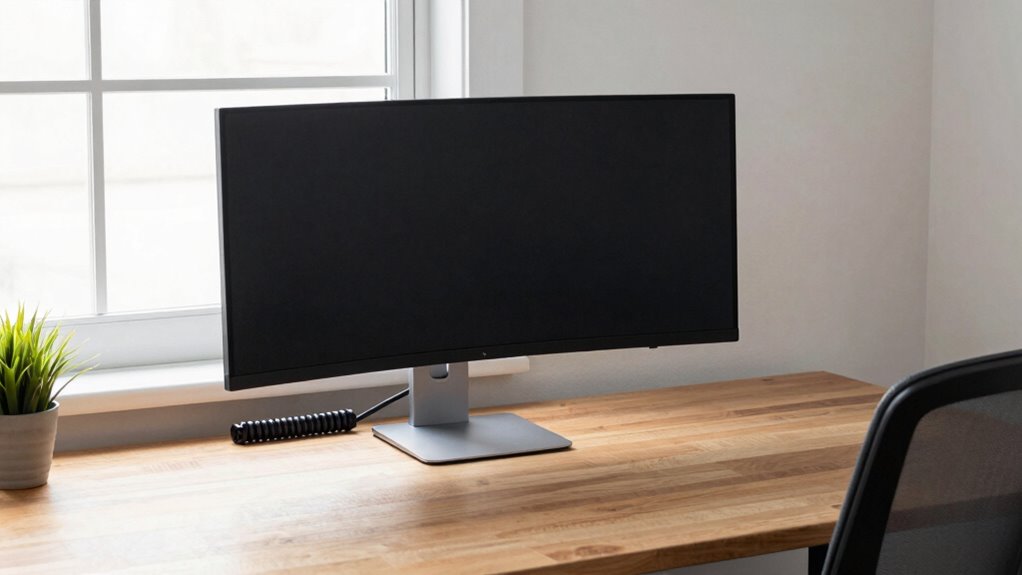
Setting up your monitor correctly can considerably cut down on daily frustrations and boost your productivity. The way you position your screen plays a crucial role in how smoothly your workday runs. When your monitor is at the right height and angle, you reduce unnecessary strain on your neck, shoulders, and eyes. To achieve this, ergonomic accessories are essential—they make it easy to adjust your monitor to the perfect position, ensuring comfort throughout the day. Adjustable monitor stands, monitor arms, or risers allow you to elevate or tilt your screen as needed, preventing you from hunching over or craning your neck. This setup not only enhances your posture but also minimizes fatigue, keeping you focused longer.
One of the biggest benefits of proper monitor positioning is the reduction of eye strain. When your screen is too low, too high, or not aligned with your natural line of sight, you tend to squint or lean forward, which contributes to tired eyes and headaches. Using ergonomic accessories helps you align your monitor correctly, so you look straight at the screen without tilting your head. Make sure the top of the display is roughly at eye level, and keep the screen about an arm’s length away. If your workspace involves multiple screens, position them at the same height and angle to avoid unnecessary neck movement. Additionally, ergonomic workspace design can further improve comfort and efficiency. Proper monitor placement is also supported by understanding ergonomics, which focuses on creating a workspace that promotes health and productivity.
Adjusting your monitor isn’t a one-time task; it’s an ongoing process that should adapt to your needs. For example, if you switch between work tasks, you might need to reposition your monitor or switch to a more flexible ergonomic accessory. Investing in a monitor arm gives you more freedom to make quick adjustments, saving time and reducing repetitive strain. Proper lighting also plays a role—avoid glare and reflections by positioning your monitor away from windows or bright lights, and consider using anti-glare filters if needed. These small adjustments can significantly decrease eye strain, helping you work longer without discomfort. Remember that ergonomic principles are based on scientific research and can guide you in creating a healthier workspace.
In addition to ergonomic accessories, taking regular breaks is vital. Follow the 20-20-20 rule: every 20 minutes, look at something 20 feet away for at least 20 seconds. This habit relaxes your eye muscles and prevents fatigue. Ultimately, the secret to reducing daily friction lies in setting up your workspace thoughtfully. By investing in ergonomic accessories and paying attention to your monitor’s position, you create a more comfortable, efficient environment. The result is fewer headaches, less eye strain, and a smoother, more productive workday.

ErGear Single Monitor Arm, Fully Adjustable Monitor Mount for 13–34 Inch Screens, Fast Install Computer Monitor Stand with Tool-Free VESA Mount, Cable Management, Holds 19.8 lbs, Max VESA 100x100mm
- Compatibility: Fits 13–34 inch monitors up to 19.8 lbs
- VESA Compatibility: Supports 75x75mm and 100x100mm patterns
- Durable Construction: Tested over 20,000 cycles for longevity
As an affiliate, we earn on qualifying purchases.
As an affiliate, we earn on qualifying purchases.
Frequently Asked Questions
Does Monitor Height Affect Eye Strain?
Yes, monitor height affects eye strain because when your screen is too high or low, it causes you to tilt your head or strain your eyes. Proper monitor height helps maintain a neutral neck position, reducing fatigue. Also, consider color calibration and screen glare, as these can further lessen eye discomfort. Adjust your monitor to eye level, and use anti-glare screens for a more comfortable viewing experience and less eye strain.
What Is the Ideal Monitor Distance for Comfort?
Think of your monitor like a good book: you want it at a distance where you can see details clearly without straining. Ideally, keep it about an arm’s length away—roughly 20-30 inches. This setup minimizes screen glare and helps maintain proper color calibration, reducing eye strain. Adjust the monitor so your eyes are level with the top of the screen, ensuring comfort during long work hours.
How Often Should I Adjust My Monitor Setup?
You should adjust your monitor setup whenever you notice discomfort or changes in your work environment. Regularly check your color calibration and screen brightness, especially if lighting conditions shift, to keep your display comfortable and accurate. Make small tweaks monthly or as needed, ensuring your monitor remains at an ideal distance and angle. Proper adjustments help reduce eye strain, improve color consistency, and enhance overall productivity.
Can Monitor Tilt Improve Posture?
Yes, monitor tilt can improve your posture by ensuring ergonomic alignment. When you tilt your monitor correctly, your neck stays straight, reducing strain and discomfort. Proper monitor tilt helps you maintain an ergonomic posture, preventing shoulder and back pain over time. Adjust your monitor so the top of the screen is at or slightly below eye level, promoting better monitor alignment and making your workspace more comfortable and healthier for long-term use.
What Accessories Can Enhance Monitor Ergonomics?
They say, “A well-equipped workspace is a productive workspace.” To enhance monitor ergonomics, consider accessories like adjustable monitor arms, anti-glare screen filters, and monitor risers. Proper keyboard placement guarantees comfortable typing, while anti-glare filters reduce eye strain caused by monitor glare. These accessories help you maintain a healthy posture, minimize discomfort, and stay focused throughout your workday.
ErGear Single Monitor Arm, Fully Adjustable Monitor Mount for 13–34 Inch Screens, Fast Install Computer Monitor Stand with Tool-Free VESA Mount, Cable Management, Holds 19.8 lbs, Max VESA 100x100mm
- Compatibility: Fits 13–34 inch monitors up to 19.8 lbs
- VESA Compatibility: Supports 75x75mm and 100x100mm patterns
- Durable Construction: Tested over 20,000 cycles for longevity
As an affiliate, we earn on qualifying purchases.
As an affiliate, we earn on qualifying purchases.
Conclusion
Now that you know the monitor setup secret, imagine how your daily routine could change. Small adjustments could eliminate persistent frustrations and boost your productivity. But here’s the catch: the real game-changer isn’t just the setup itself—it’s what you’ll discover next. Are you ready to reveal even more secrets that could revolutionize your workday? Keep exploring, because the next move might just be the breakthrough you’ve been waiting for.

SightPro 24 Inch 16:9 Computer Privacy Screen Filter for Monitor – Privacy Shield and Anti-Glare Protector
- Privacy Filter Dimensions: Fits 24-inch monitors, verify measurements
- Two Attachment Options: Adhesive strips or slide mount tabs
- Enhanced Privacy & Anti-Glare: Blocks side view, reduces glare and blue light
As an affiliate, we earn on qualifying purchases.
As an affiliate, we earn on qualifying purchases.

BoYata Monitor Stand, Adjustable Height Metal Desktop Riser, Black
- Adjustable Height: Twist knob for height adjustment
- Ergonomic Design: Promotes comfortable eye and monitor alignment
- High Weight Capacity: Supports up to 33.06 lbs with stability
As an affiliate, we earn on qualifying purchases.
As an affiliate, we earn on qualifying purchases.